ironSource Adapter
This guide covers the integration of Boldwin SDK through ironSource Level Play platform. The Boldwin SDK supports the following ad formats:
- Banner
- Interstitial
- Rewarded
ironSource Integration
For comprehensive ironSource LevelPlay setup instructions, see the official ironSource LevelPlay documentation.
iOS Setup
Add Dependencies
Option 1: Swift Package Manager
In Xcode:
- In Xcode, select File > Add Package Dependencies.
-
Add Boldwin SDK from:
-
Add Boldwin ironSource Adapter from:
Option 2: CocoaPods
-
Open your project's Podfile and add this line to your app's target build configuration:
-
In a terminal, run the following command:
Option 3: Direct Download
Download the Boldwin SDK and Adapter using the link below and embed it into your project:
https://bw-sdk.s3.us-east-1.amazonaws.com/ios/boldwin-sdk/1.15.14/BoldwinIronSourceAdapter.xcframework.zip
Configure Boldwin in ironSource Dashboard
- Log in to your ironSource dashboard.
- Go to LevelPlay > Setup > Networks.
- Click Add Custom network.
- Enter
15c0c665das Network Key.

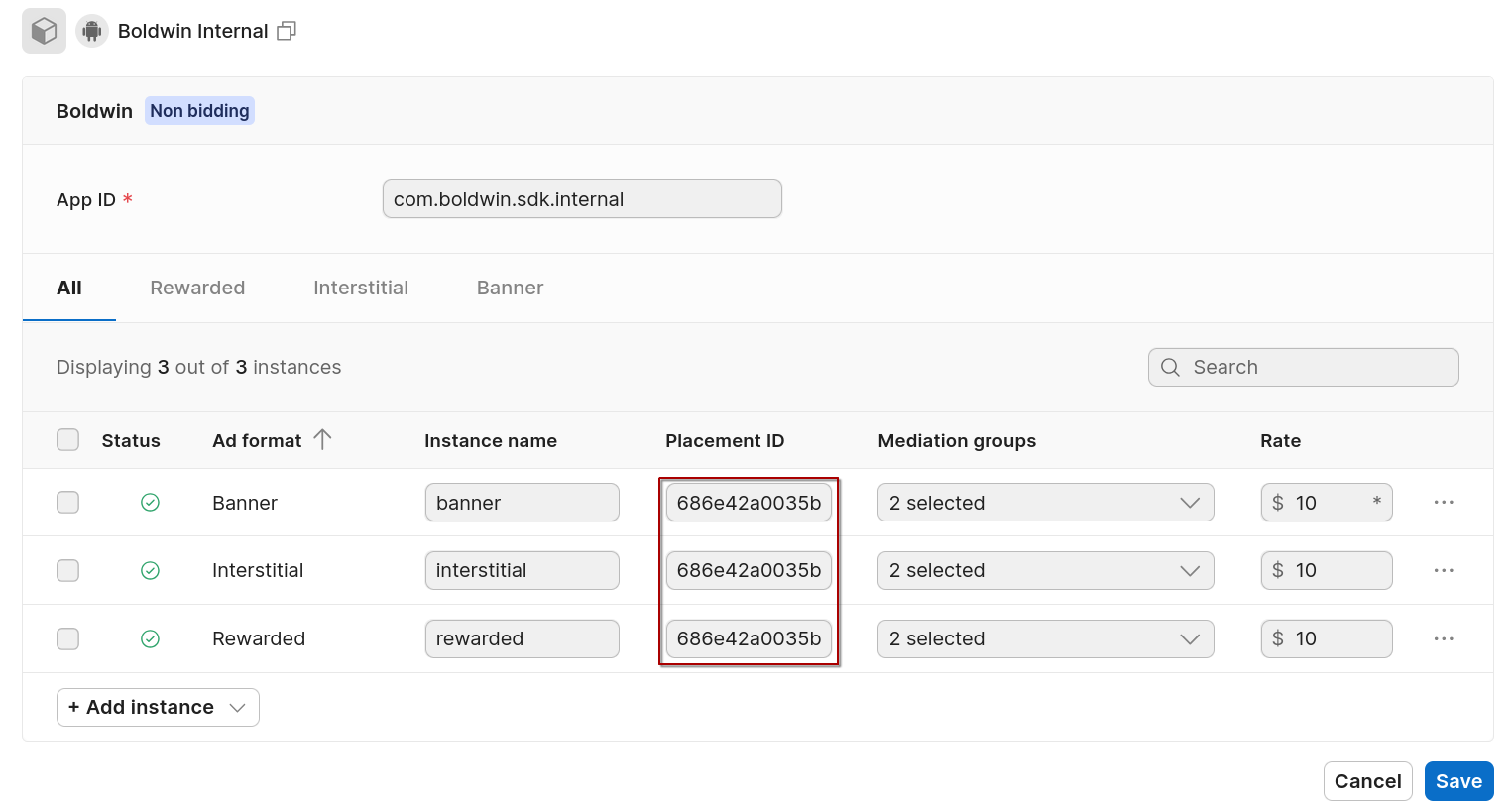
Configure placement IDs
- Go to LevelPlay > Setup > Instances
- Select Boldwin
- Click Add instance and select the ad format
- Write the placement ID for the selected ad format
Configure Boldwin For Ad Units
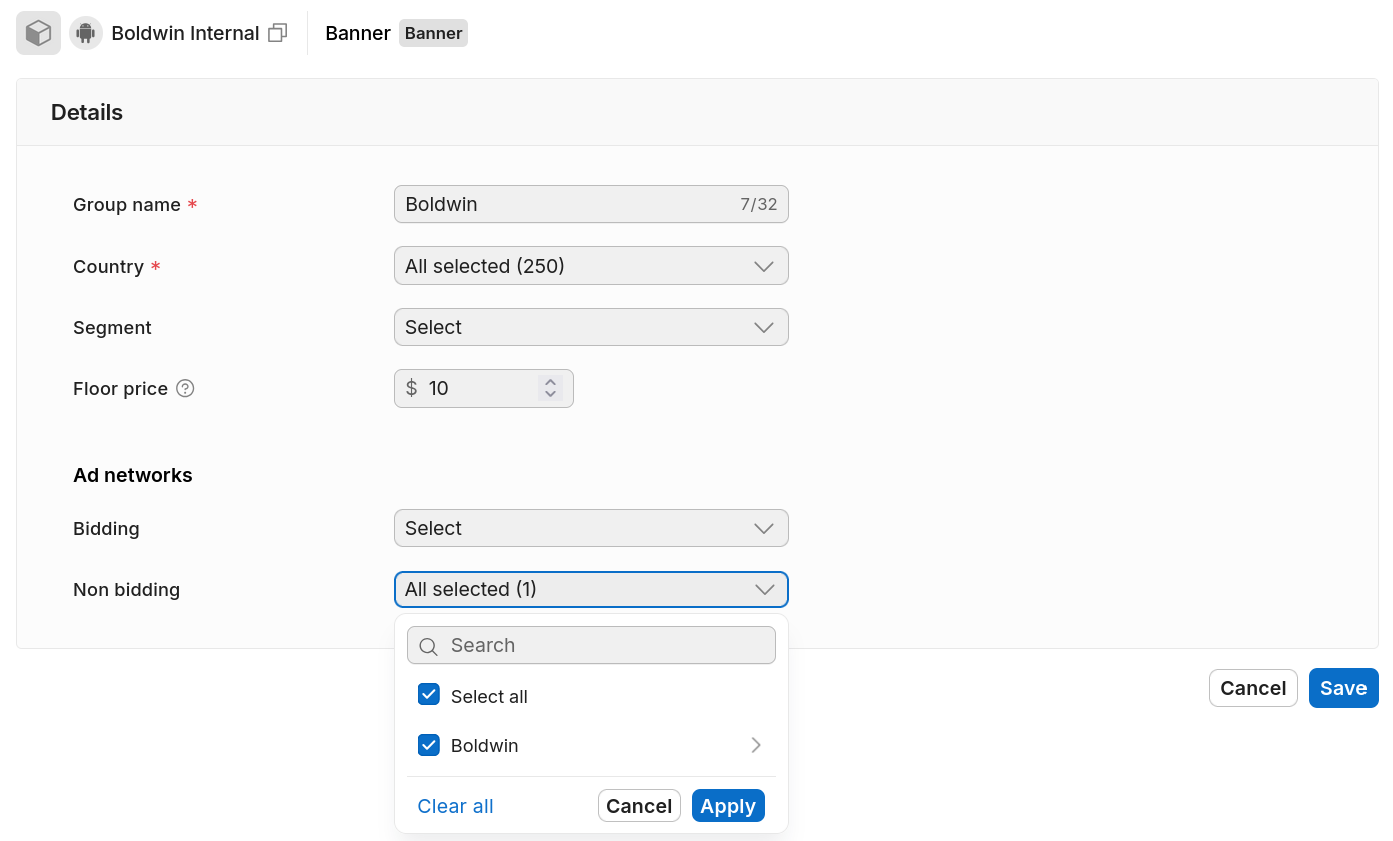
- Go to Management > Mediation.
- Click Add new group.
- Select Boldwin as the ad network.
- Save the group.