AppLovin MAX Adapter
This guide covers the integration of Boldwin SDK through AppLovin MAX platform. The Boldwin SDK supports the following ad formats:
- Banner
- MREC
- Interstitial
- Rewarded
AppLovin MAX Integration
For detailed AppLovin MAX setup instructions, see the official AppLovin MAX documentation.
Android Setup
Add Boldwin SDK to your app
Follow the integration guide.
Add to your app's build.gradle:
dependencies {
    // Boldwin SDK
    implementation 'com.boldwin.sdk:core:1.15.13'
    // AppLovin Boldwin Adapter
    implementation 'com.boldwin.sdk:applovin-adapters:1.15.13'
}
Configure Boldwin in MAX Dashboard
- Log in to your AppLovin MAX dashboard.
- Navigate to Manage > Networks.
- Click Click here to add a Custom Network.. Check out Custom Network Setup Guide for details.
- Add Boldwin with these details:
- Network Name:
Boldwin - Android Adapter Class Name:
com.applovin.mediation.adapters.BoldwinAppLovinMediationAdapter
- Network Name:
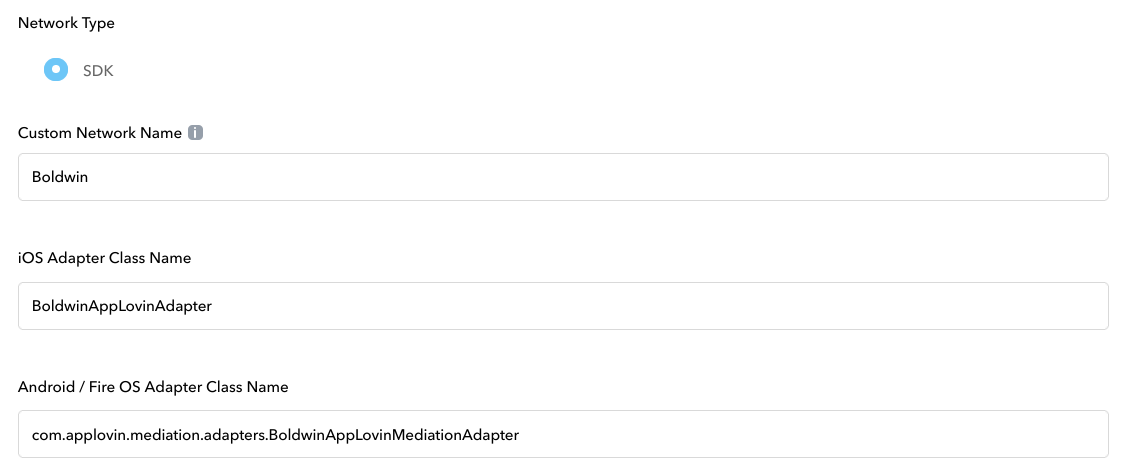
Configure Boldwin For Ad Units
- Edit your ad unit.
- Find Custom Networks tab and activate the Boldwin network.
- Set custom parameters with the required values.
- Save the ad unit.
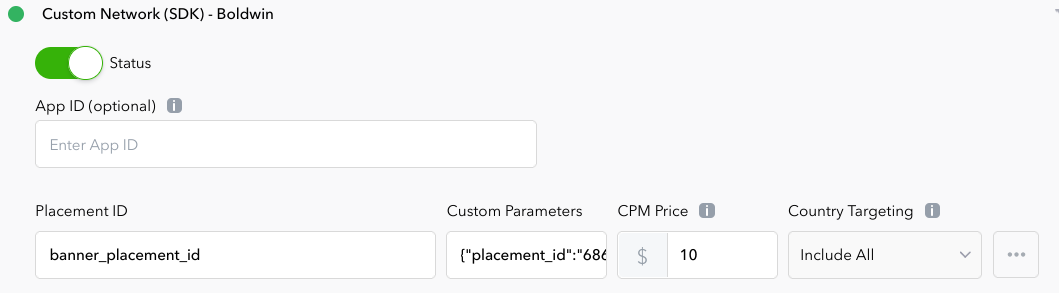
Example of custom parameters:
The custom parameters include the following keys:
placement_id- The Boldwin placement ID. Required.ad_sizes- An array of ad sizes. You can set multiple sizes. Required for banner and MREC ad formats. For interstitial and rewarded ads, sizes can be omitted.